

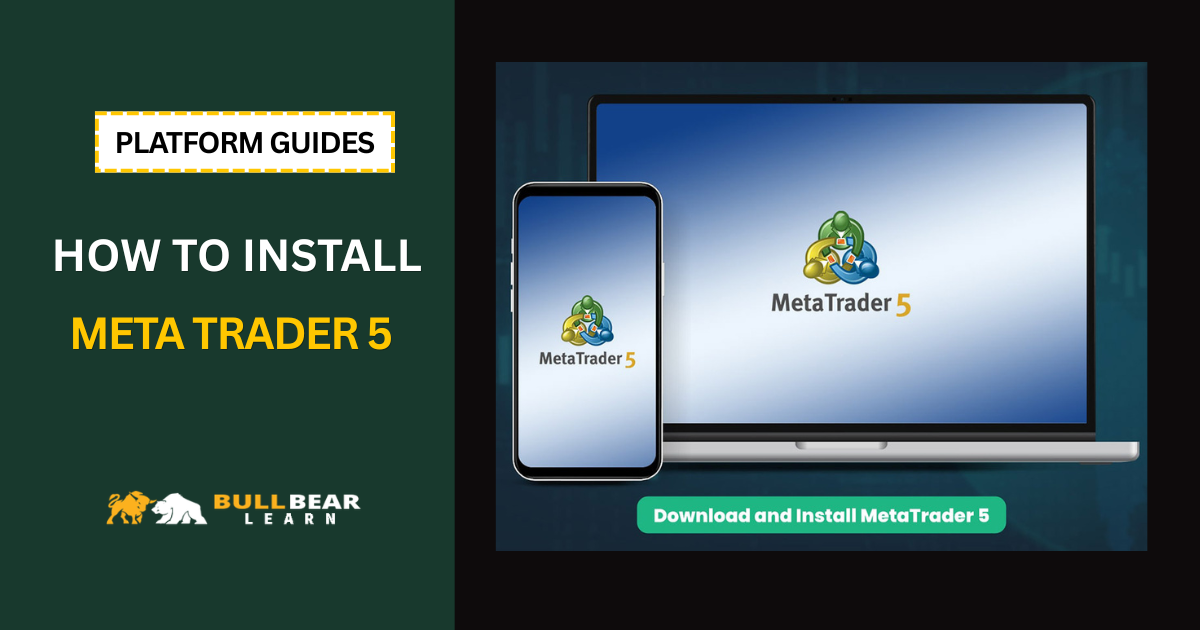
MetaTrader 5 (MT5) is one of the most widely used trading platforms for Forex and other financial markets. Before you can analyze charts or place trades, however, you need to download the correct version, install the software, and connect it to a trading account.
For beginners, the installation process is relatively simple. The part that often causes confusion is understanding the difference between the MT5 platform and the broker account used to access the markets.
This guide explains how to download and install MT5 step by step, including how to connect the platform to a broker account and what to check before placing your first trade.
If you are completely new to the platform, you can first read our complete MetaTrader 5 guide to understand the main features and functions of MT5.
What Is MetaTrader 5?
MetaTrader 5 is a multi-asset trading platform developed by MetaQuotes.
The platform allows traders to:
- Analyze financial markets
- View real-time price charts
- Use technical indicators
- Place and manage orders
- Set Stop Loss and Take Profit
- Monitor account positions
- Use Expert Advisors
- Test automated trading strategies
MT5 itself is not a broker.
Instead, your broker provides the trading account and market access, while MT5 acts as the software through which you interact with that account.
This distinction is important because downloading MT5 does not automatically create a live trading account.
What Do You Need Before Installing MT5?
Before downloading MT5, you generally need:
- A compatible device
- An internet connection
- An MT5-compatible broker account
- Your trading account login details
If you are still deciding which broker to use, compare the broker’s regulation, spreads, commissions, execution model, available instruments, and MT5 support before opening an account.
A broker may offer MT4, MT5, or both, so always make sure you are opening the correct account type.
How to Download MT5
The safest approach is to download MT5 from your broker or from the official MetaTrader source.
Avoid downloading modified or unofficial versions of the platform from unknown websites.
Step 1: Choose Your Broker
First, decide which broker you want to use.
If you already have an account with an MT5-supported broker, you can usually download the MT5 installation file directly from the broker’s website.
The broker may provide a customized version of MT5 that automatically includes its trading servers and account configuration.
Step 2: Find the MT5 Download Page
Look for a section such as:
- Trading Platforms
- MetaTrader 5
- Platforms & Tools
- MT5 Download
Select the version compatible with your device.
For desktop users, this will normally be the Windows version. Some brokers also provide versions for macOS.
How to Install MT5 on Windows
The Windows installation process is straightforward.
Step 1: Download the Installation File
Download the MT5 installer from your broker or a trusted official source.
The file will normally be an executable installation file.
Step 2: Open the Installer
Locate the downloaded file and double-click it.
Windows may display a security confirmation asking whether you want to allow the application to make changes to your device.
Review the application information and continue if the file came from a trusted source.
Step 3: Accept the Installation Terms
Follow the instructions displayed by the installation wizard.
The installer will normally ask you to accept the relevant terms before continuing.
Step 4: Choose the Installation Location
For most users, the default installation folder is sufficient.
There is usually no need to change it unless you have a specific reason to install MT5 elsewhere.
Step 5: Complete the Installation
Click the installation button and wait for the process to finish.
Once installation is complete, MT5 can be launched from the desktop shortcut or Start menu.
How to Install MT5 on Mac
The process for macOS can differ depending on the broker and the version of MT5 they provide.
Some brokers provide a dedicated macOS-compatible installation package, while others provide alternative instructions for running the platform.
The safest approach is to follow the installation instructions provided by your broker.
Before installing third-party software or compatibility layers, verify that the solution is officially supported by your broker.
How to Install MT5 on Mobile
MT5 is also available on mobile devices.
The mobile application can generally be downloaded through the official application store for your device.
After installation:
- Open the MT5 app
- Select the option to log in to an existing account
- Search for your broker
- Select the correct broker server
- Enter your account credentials
- Log in
The mobile version provides many essential functions, including:
- Live prices
- Charts
- Indicators
- Order management
- Account history
- Trade monitoring
However, desktop MT5 generally provides a more comprehensive environment for detailed technical analysis and automated trading.
How to Connect MT5 to Your Trading Account
Installing MT5 is only the first step.
You must connect the platform to your broker account before you can access your trading account.
Open MT5 and select the login option for an existing trading account.
You will normally need:
- Login ID
- Trading password
- Broker server
These details are usually provided by your broker after your trading account has been created.
What Is the MT5 Server?
The server is an important part of the login process.
A broker may operate multiple servers for different account types, regions, or trading environments.
For example, you might see separate servers for:
- Demo accounts
- Live accounts
- Different account types
- Different geographic regions
If you enter the correct login and password but select the wrong server, MT5 may not connect to your account.
Always use the server specified by your broker.
How to Open an MT5 Demo Account
If you are completely new to trading, starting with a demo account can help you learn the platform without immediately risking real money.
A demo account allows you to practice:
- Opening trades
- Closing positions
- Setting Stop Loss
- Setting Take Profit
- Testing indicators
- Learning order types
- Understanding account information
However, demo trading does not perfectly replicate live trading conditions.
Execution, spreads, slippage, and psychology can differ significantly between demo and live accounts.
How to Check Whether MT5 Is Connected
After logging in, check the platform’s connection status.
You should see live market prices updating in the Market Watch window.
You can also open a chart and check whether price data is moving.
If prices are not updating, possible causes include:
- Incorrect server
- Incorrect login credentials
- Internet connection problems
- Broker server issues
- Market closure
Do not place a trade until you understand why the platform is not receiving current market data.
How to Add Currency Pairs to MT5
After connecting your account, you may notice that some instruments are not immediately visible.
To add a currency pair:
- Open Market Watch
- Search for the instrument
- Select the instrument
- Display it in Market Watch
- Open its chart
Depending on the broker, the symbol name may vary.
For example, a broker might use a suffix or prefix for a particular instrument.
Always use the symbol provided by your broker.
How to Open Your First MT5 Chart
Once the instrument appears in Market Watch:
- Select the currency pair
- Open the chart
- Choose your preferred timeframe
- Select a chart type
- Add indicators if required
Common Forex pairs include:
- EUR/USD
- GBP/USD
- USD/JPY
- AUD/USD
- USD/CAD
- USD/CHF
- NZD/USD
Beginners should avoid opening dozens of charts at once.
Start with a small number of instruments and learn how they behave.
What to Set Up Before Your First Trade
Installing MT5 does not mean you are ready to trade immediately.
Before opening a position, you should understand:
Position Size
Determine how much capital you are willing to risk.
Our Position Size Calculator can help you calculate an appropriate trade size based on your account balance, risk percentage, and Stop Loss distance.
Pip Value
Understanding how much each pip is worth is also important.
Use our Pip Calculator to estimate pip value before placing a trade.
Margin
Leverage affects the amount of margin required to maintain a position.
Our Margin Calculator can help you estimate the required margin before entering a leveraged position.
How to Place a Trade on MT5
Once your account and chart are ready, you can open the order window.
You will generally need to specify:
- Trading instrument
- Volume
- Order type
- Stop Loss
- Take Profit
For a market order, you can choose Buy or Sell based on your trading plan.
Do not select the trade direction simply because the price is moving quickly.
Your entry should be based on a predefined strategy.
MT5 Installation Problems and Common Fixes
MT5 Will Not Install
Check:
- Your operating system compatibility
- Available storage
- Installation permissions
- Whether the installer came from a trusted source
If the problem persists, contact your broker’s technical support.
MT5 Cannot Connect to the Broker
Check:
- Login number
- Password
- Server
- Internet connection
- Account status
The most common mistake is selecting the wrong server.
No Prices Are Showing
If Market Watch is not updating:
- Check your internet connection
- Confirm that the correct account is connected
- Verify the broker server
- Check whether the relevant market is open
My Broker Does Not Appear in MT5
Not every broker supports MT5.
If you cannot find your broker when attempting to log in, confirm whether your account was created specifically for MT5.
A broker may offer separate MT4 and MT5 accounts.
MT5 Installation Does Not Guarantee Trading Access
This is an important distinction for beginners.
You can successfully install MT5 and still be unable to trade because:
- You have not opened a trading account
- Your account has not been verified
- You are using the wrong server
- You are using incorrect credentials
- Your broker does not support MT5
- The account is inactive
The platform is simply the interface.
Your broker determines the available account types, instruments, leverage, trading conditions, and execution environment.
Should You Start With MT5 or MT4?
If you are opening a new trading account and your broker supports both platforms, MT5 is generally worth considering because it provides a broader range of features and asset support.
However, MT4 remains widely used and has a large ecosystem of indicators, Expert Advisors, and educational resources.
If you are unsure which platform is right for you, read our guide to MT4 vs MT5 before opening an account.
What to Learn After Installing MT5
Installing the software is only the beginning.
Your next steps should be:
- Learn the MT5 interface
- Understand order types
- Learn how to use charts
- Add essential indicators
- Learn Stop Loss and Take Profit
- Practice position sizing
- Understand margin and leverage
- Develop a trading plan
Once you have completed the installation, continue with our guide on how to use MT5 to learn the platform step by step.
Final Thoughts
Installing MetaTrader 5 is a relatively simple process, but setting up the platform correctly is important if you want to avoid unnecessary problems later.
The basic process is:
Choose a broker → Download MT5 → Install the platform → Connect your account → Verify the connection → Configure your charts → Learn risk management → Start practicing
Do not rush from installation directly into live trading.
Take time to understand how orders, leverage, margin, position sizing, and Stop Loss work before putting real capital at risk.
If you are ready to choose a broker, compare the available MT5 brokers, including regulation, spreads, commissions, account types, and trading conditions before opening an account.
The platform is only one part of your trading setup. Your broker, risk management, and trading process matter just as much.