

MetaTrader 5 can look complicated when you first open it.
There are charts, currency pairs, indicators, order windows, account information, market prices, and dozens of different settings. For a beginner, knowing where to start can be difficult.
The good news is that you do not need to understand every MT5 feature immediately.
To start trading effectively, you only need to understand the platform’s core functions:
- How to find markets
- How to open charts
- How to analyze price
- How to place orders
- How to set Stop Loss and Take Profit
- How to manage open positions
- How to monitor account information
This beginner-friendly guide explains how to use MT5 step by step, from opening the platform to managing your first trade.
If you have not installed the platform yet, read our MT5 installation guide first.
What Can You Do With MT5?
MetaTrader 5 is more than an order execution platform.
You can use it to:
- Analyze financial markets
- Monitor real-time prices
- Open and close positions
- Use technical indicators
- Draw support and resistance levels
- Set alerts
- Manage risk
- Test trading strategies
- Use Expert Advisors
Depending on your broker, MT5 may provide access to Forex, commodities, indices, stocks, cryptocurrencies, and other instruments.
However, the exact instruments and trading conditions depend on your broker.
Understanding the MT5 Interface
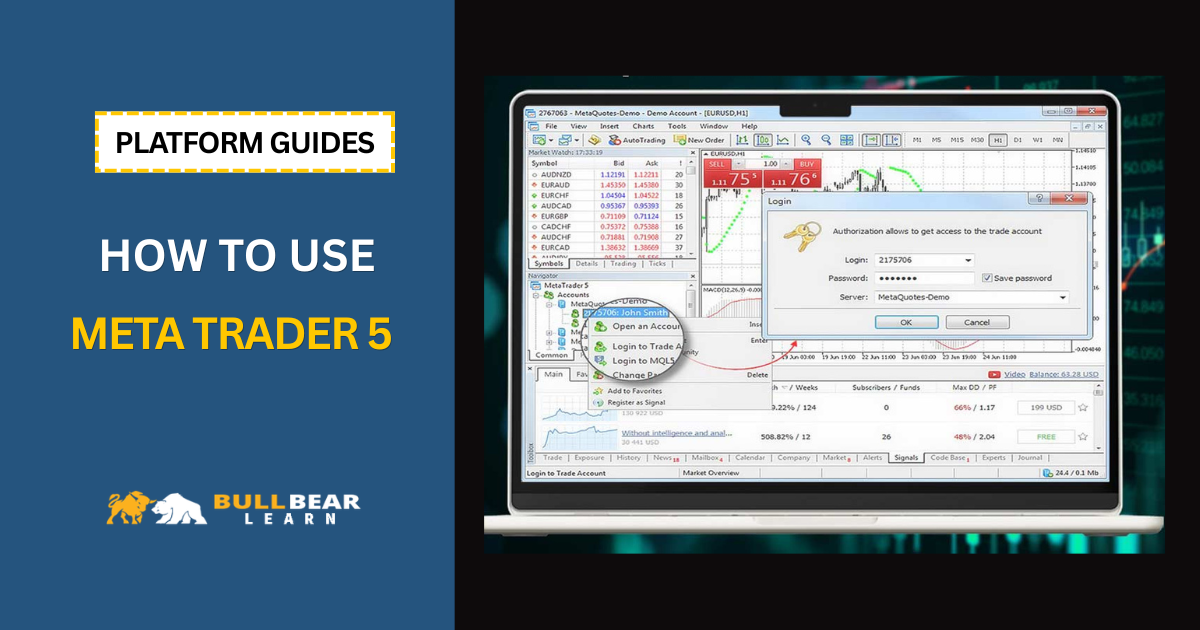
When you open MT5, several important sections appear on the screen.
Understanding these areas is the first step toward using the platform efficiently.
Market Watch
Market Watch displays available financial instruments and their current prices.
You may see:
- EUR/USD
- GBP/USD
- USD/JPY
- XAU/USD
- US indices
- Oil
- Cryptocurrency
The exact list depends on your broker.
You can right-click inside Market Watch to find additional instruments.
Navigator
The Navigator window provides access to:
- Trading accounts
- Indicators
- Expert Advisors
- Scripts
If you want to add an indicator or run an Expert Advisor, you will frequently use this section.
Chart Window
The chart is where you analyze price action.
You can change:
- Timeframe
- Chart type
- Indicators
- Colors
- Price scale
- Objects and drawing tools
Most technical analysis takes place directly on the chart.
Toolbox
The Toolbox appears at the bottom of MT5.
It contains several useful sections, including:
- Trade
- History
- Exposure
- Alerts
- Mailbox
- Calendar
- Experts
- Journal
The Trade tab is particularly important because it shows your current positions and pending orders.
How to Add a Currency Pair to MT5
Before analyzing a market, you need to find the instrument.
For example, suppose you want to analyze EUR/USD.
Open Market Watch and search for EUR/USD.
Depending on your broker, the symbol may appear as:
- EURUSD
- EURUSD.a
- EURUSDm
- EURUSD.raw
The exact symbol depends on the broker’s account structure.
Once you find the instrument, right-click it and select the option to open its chart.
How to Open a Chart in MT5
Opening a chart is simple.
You can generally:
- Find the instrument in Market Watch
- Right-click the symbol
- Select the chart option
- Choose your preferred timeframe
You can open multiple charts at the same time.
However, beginners should avoid monitoring too many instruments simultaneously.
Start with a few major currency pairs and learn how they behave.
Understanding MT5 Timeframes
MT5 provides multiple timeframes for analyzing price movements.
Common timeframes include:
- M1 – 1 minute
- M5 – 5 minutes
- M15 – 15 minutes
- M30 – 30 minutes
- H1 – 1 hour
- H4 – 4 hours
- D1 – 1 day
- W1 – 1 week
- MN – 1 month
The appropriate timeframe depends on your trading strategy.
Scalpers
May focus on:
- M1
- M5
- M15
Day Traders
Often use:
- M15
- H1
- H4
Swing Traders
May focus on:
- H4
- D1
- W1
There is no universally “best” timeframe.
The important thing is to use timeframes that match your trading strategy.
How to Change the Chart Type
MT5 supports different chart styles.
The three most common are:
Candlestick Chart
The most popular choice among technical traders.
Each candle displays:
- Open
- High
- Low
- Close
Bar Chart
Similar information to candlesticks but presented in a different visual format.
Line Chart
Usually displays closing prices.
For most beginners, the candlestick chart is the easiest format to learn.
How to Zoom and Navigate an MT5 Chart
You can zoom in and out of a chart to examine different levels of price action.
You can also scroll backward to study historical market conditions.
This is particularly useful for:
- Backtesting manually
- Studying price patterns
- Identifying support and resistance
- Reviewing previous trades
Historical analysis can help you understand how your strategy behaves under different market conditions.
How to Add Indicators in MT5
Indicators are mathematical tools that process market data to help traders analyze price behavior.
Some popular indicators include:
- Moving Average
- RSI
- MACD
- Bollinger Bands
- Stochastic Oscillator
- Average True Range
To add an indicator:
- Open the chart
- Select the indicator menu
- Choose an indicator
- Configure its settings
- Apply it to the chart
For example, you can add a Moving Average to identify the general direction of a market.
However, using more indicators does not automatically produce better analysis.
A chart containing ten indicators can be less useful than a chart containing two well-understood tools.
How to Draw Support and Resistance
MT5 includes drawing tools that can help you analyze market structure.
You can draw:
- Horizontal lines
- Trendlines
- Channels
- Fibonacci retracements
- Vertical lines
For beginners, horizontal support and resistance levels are a good starting point.
These levels can help identify areas where price has previously reacted.
How to Open an Order Window
Once you have analyzed a market, you can open the order window.
There are several ways to do this.
You can:
- Right-click a symbol
- Select New Order
- Use the New Order button
- Use the trading shortcut available in your platform
The order window allows you to configure important trade parameters.
Understanding the MT5 Order Window
Depending on the order type, you may need to enter:
- Symbol
- Volume
- Order type
- Entry price
- Stop Loss
- Take Profit
The Volume field determines the size of your position.
This is one of the most important fields because larger positions produce larger potential profits and losses.
Before entering your volume, consider using a Position Size Calculator to determine a position size based on your risk tolerance.
Market Orders vs Pending Orders
MT5 supports different ways to enter a trade.
Market Order
A market order attempts to execute immediately at the available market price.
You can generally choose:
- Buy
- Sell
Pending Order
A pending order is designed to execute only when price reaches a specified level or condition.
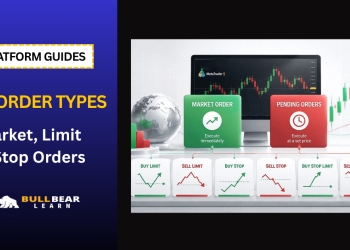
MT5 provides several pending order types.
Understanding these orders is important before using them with real money.
For a detailed explanation, see our upcoming guide to MT5 order types.
How to Open a Buy Trade
Suppose you believe EUR/USD will rise.
You may prepare a Buy order.
Before confirming the trade, check:
- Instrument
- Position size
- Current price
- Stop Loss
- Take Profit
Once you confirm the order, MT5 will attempt to execute it according to your broker’s trading conditions.
The position will then appear under the Trade tab.
How to Open a Sell Trade
If your strategy indicates that EUR/USD may decline, you may consider a Sell position.
The process is similar:
- Select the instrument
- Open the order window
- Select the appropriate volume
- Set Stop Loss
- Set Take Profit
- Confirm the order
The direction of the trade should always come from your strategy rather than from a random prediction.
What Is Stop Loss?
A Stop Loss is an order level designed to automatically close a position when price reaches a predefined level.
Its primary purpose is risk control.
For example:
You open a Buy trade at 1.1000.
You decide that the trade is invalid if price falls to 1.0975.
You could place the Stop Loss around that level.
If the market reaches the Stop Loss, the position is closed according to the available execution conditions.
Stop Loss does not guarantee that your exact requested price will always be achieved, particularly during fast markets or gaps.
For a more detailed explanation, see our guide to Stop Loss and Take Profit.
What Is Take Profit?
Take Profit works in the opposite direction.
It allows you to define a price level at which you want a profitable position to close.
For example:
- Entry: 1.1000
- Take Profit: 1.1050
If the market reaches the relevant level, the position can be closed according to the order conditions.
Before setting Take Profit, consider the potential reward relative to your risk.
You can estimate the potential outcome using our Forex Profit Calculator.
Understanding Position Size
Position size determines how much exposure your trade has.
For Forex, position sizes are often expressed in lots.
For example:
- 0.01 lot
- 0.10 lot
- 1.00 lot
A larger position size means that each price movement has a larger monetary impact.
Beginners should avoid choosing position size simply because a particular lot size “looks small.”
Instead, calculate your risk based on:
- Account balance
- Risk percentage
- Stop Loss distance
- Pip value
Our Position Size Calculator can help with this calculation.
Understanding Margin and Leverage
MT5 displays information related to:
- Balance
- Equity
- Margin
- Free Margin
- Margin Level
Leverage allows traders to control a larger position with less capital.
However, leverage does not remove risk.
A highly leveraged position can create significant losses relative to account size.
Before opening a large position, use a Margin Calculator to understand how much margin may be required.
How to Monitor an Open Trade
After opening a position, go to the Trade tab in the Toolbox.
You can normally see:
- Symbol
- Position type
- Volume
- Entry price
- Current price
- Stop Loss
- Take Profit
- Profit or loss
You should monitor the trade according to your predefined plan rather than reacting emotionally to every price movement.
How to Modify an Open Trade
If you need to modify a position, you can generally right-click the trade and select the modification option.
You may be able to change:
- Stop Loss
- Take Profit
Whether you should modify these levels is a separate trading decision.
Avoid moving Stop Loss farther away simply because the market is moving against you.
That turns a predefined risk into an open-ended risk.
How to Close a Trade
When you decide to close a position, you can use the closing option associated with the open trade.
After the position is closed, it will move from the active Trade section to the account History.
Reviewing closed trades is an important part of improving your trading process.
How to Read Your MT5 Trading History
The History section can show information such as:
- Previous trades
- Entry prices
- Exit prices
- Trading volume
- Commissions
- Swaps
- Profit or loss
Do not only look at whether a trade made money.
Also analyze:
- Was the setup valid?
- Was risk controlled?
- Did you follow your strategy?
- Was the position size appropriate?
- Did you exit according to plan?
This turns MT5 from an execution platform into a useful source of trading performance data.
Using MT5 Alerts
MT5 can also help you monitor markets without watching charts continuously.
Price alerts can notify you when a market reaches a particular level.
For example, you could create an alert when EUR/USD reaches a support zone.
This can reduce the temptation to stare at charts all day.
MT5 for Demo Trading
Beginners should consider practicing on a demo account before using real money.
Use the demo account to learn:
- How orders work
- How Stop Loss works
- How Take Profit works
- How to change position size
- How to modify trades
- How to close positions
- How to read account information
The objective is not simply to make virtual profits.
The objective is to become comfortable with the platform and develop a repeatable process.
Common MT5 Mistakes Beginners Should Avoid
Using Too Many Indicators
More indicators do not necessarily mean better analysis.
Focus on understanding a small number of tools.
Trading Without a Stop Loss
A strategy should define risk before entry.
Using Excessive Position Size
Large positions can turn normal market movements into significant account losses.
Changing the Stop Loss Emotionally
Do not move your Stop Loss simply to avoid accepting a loss.
Overtrading
MT5 makes it extremely easy to open another position.
Convenience should not replace discipline.
Trading Without Understanding Margin
Always understand how much exposure your account can support.
A Simple MT5 Workflow for Beginners
A basic workflow can look like this:
Step 1
Choose the market you want to analyze.
Step 2
Select an appropriate timeframe.
Step 3
Analyze market structure.
Step 4
Identify a potential setup.
Step 5
Determine your entry.
Step 6
Define Stop Loss.
Step 7
Calculate position size.
Step 8
Define Take Profit.
Step 9
Check the economic calendar.
Step 10
Place the trade.
Step 11
Monitor according to your trading plan.
Step 12
Record and review the result.
This process is much more important than knowing every feature inside MT5.
How MT5 Fits Into a Complete Trading Workflow
MT5 should be viewed as one component of a broader trading system.
A useful workflow could be:
Market Analysis
↓
Forex Heatmap
↓
Currency Correlation
↓
Technical Analysis in MT5
↓
Position Size Calculator
↓
Margin Calculator
↓
Profit Calculator
↓
Economic Calendar
↓
Trade Execution on MT5
This approach separates analysis, risk management, and execution instead of making every decision inside the order window.
Final Thoughts
Learning how to use MT5 does not require mastering every feature on the first day.
Start with the fundamentals:
- Find an instrument
- Open a chart
- Understand timeframes
- Add basic indicators
- Analyze price
- Open an order
- Set Stop Loss and Take Profit
- Manage position size
- Monitor your account
- Review your trading history
Once these functions become familiar, you can gradually explore more advanced features such as Expert Advisors, strategy testing, custom indicators, and automated trading.
The most important lesson is that MT5 is a tool, not a trading strategy.
The platform can execute your decisions efficiently, but it cannot determine whether those decisions are good.
Build your strategy first, manage your risk carefully, and use MT5 as the execution and analysis platform that supports your process.
If you are ready to continue learning, the next step is understanding the different MT5 order types and when each one should be used.